More ways to personalize your library
The new Play page, overhauled instance groups, custom icons, and a smoother onboarding experience.
Posted on August 18, 2026 Modrinth Team
Hey everyone,
Creating, organizing, and finding instances has always been one of the most important parts of the Modrinth App, but we weren’t happy with how this worked.
With this update, we’ve brought the Home and Library together into a new Play page, rebuilt instance organization, added an icon editor, and improved onboarding across the whole app.
TL;DR
- New Play page combining Home and Library
- Improved instance creation flow
- New icon editor for instance icons
- Improved instance groups and filtering
- New onboarding checklist for first-time users
- Updated empty states and sign-in modals
Play page
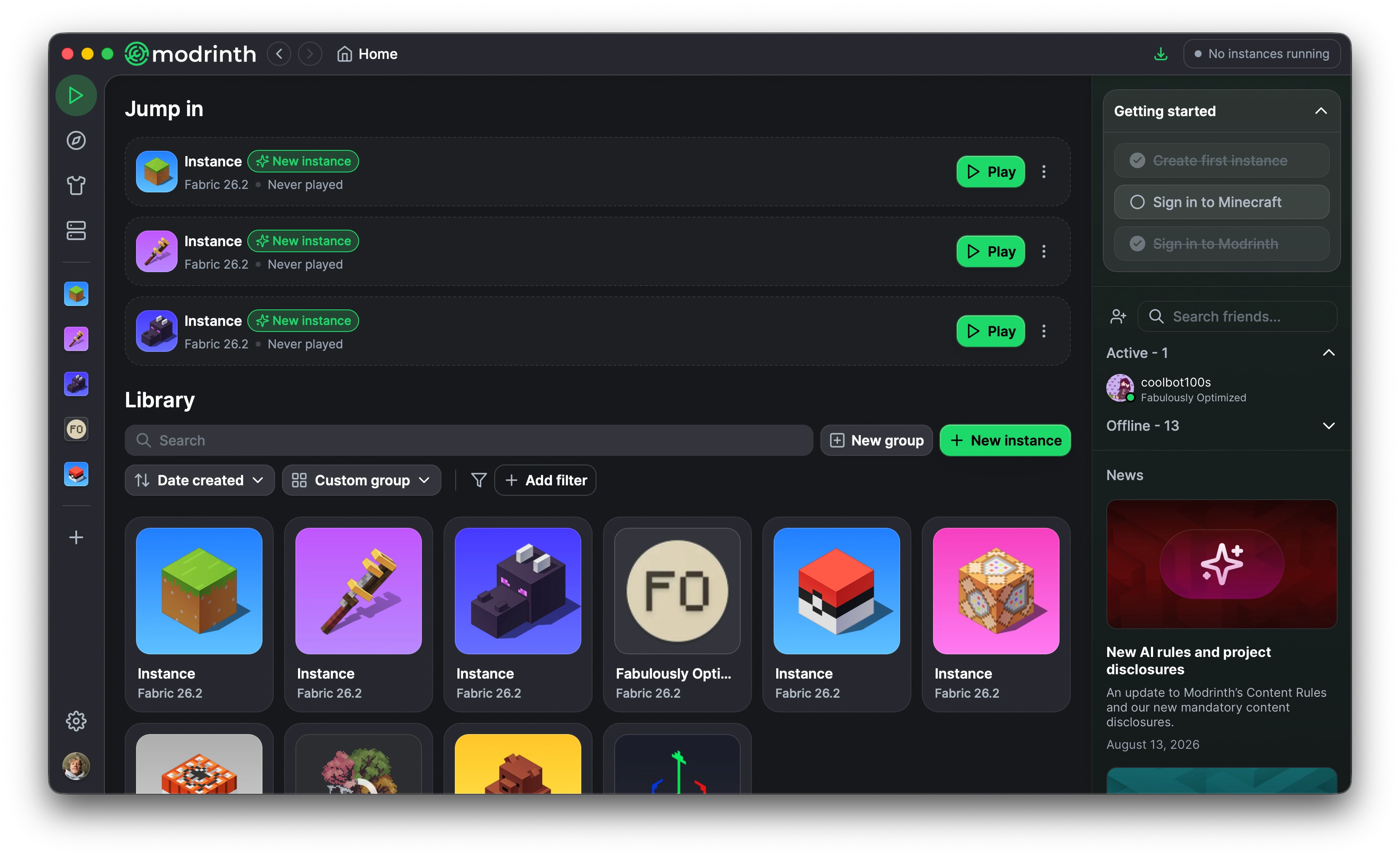
We’ve introduced a new Play page that merges the old Home and Library pages. We had a few goals for this page:
- Bring everything related to playing into one place
- Make it clearer how to actually launch the game
- Improve how instances are organized
Jump in section
This is basically an evolution of the Jump back in section. Newly created instances can now show up here as well. Previously, you had to launch an instance and join a world or server before anything would populate, which wasn’t great for new users.
We also made a few other changes:
- An instance and world will no longer both show up. Once you join a world or server, it replaces the instance entry
- There is a hard limit of five slots instead of the previous three or six based on recency
- Iterated on the overall design
Library section
The instance library got a complete overhaul. You can now create groups and instances directly from the Library section.
Groups can be created by clicking the “New group” button on the page, or by selecting multiple instances and clicking “New group” in the action bar. The action bar also includes other actions like removing instances from a group or deleting them.
Once a group is created, you can edit its name, change the instances within it, and reorder your groups from the controls in the top right. Instances can also be selected or multi-selected and dragged between groups.
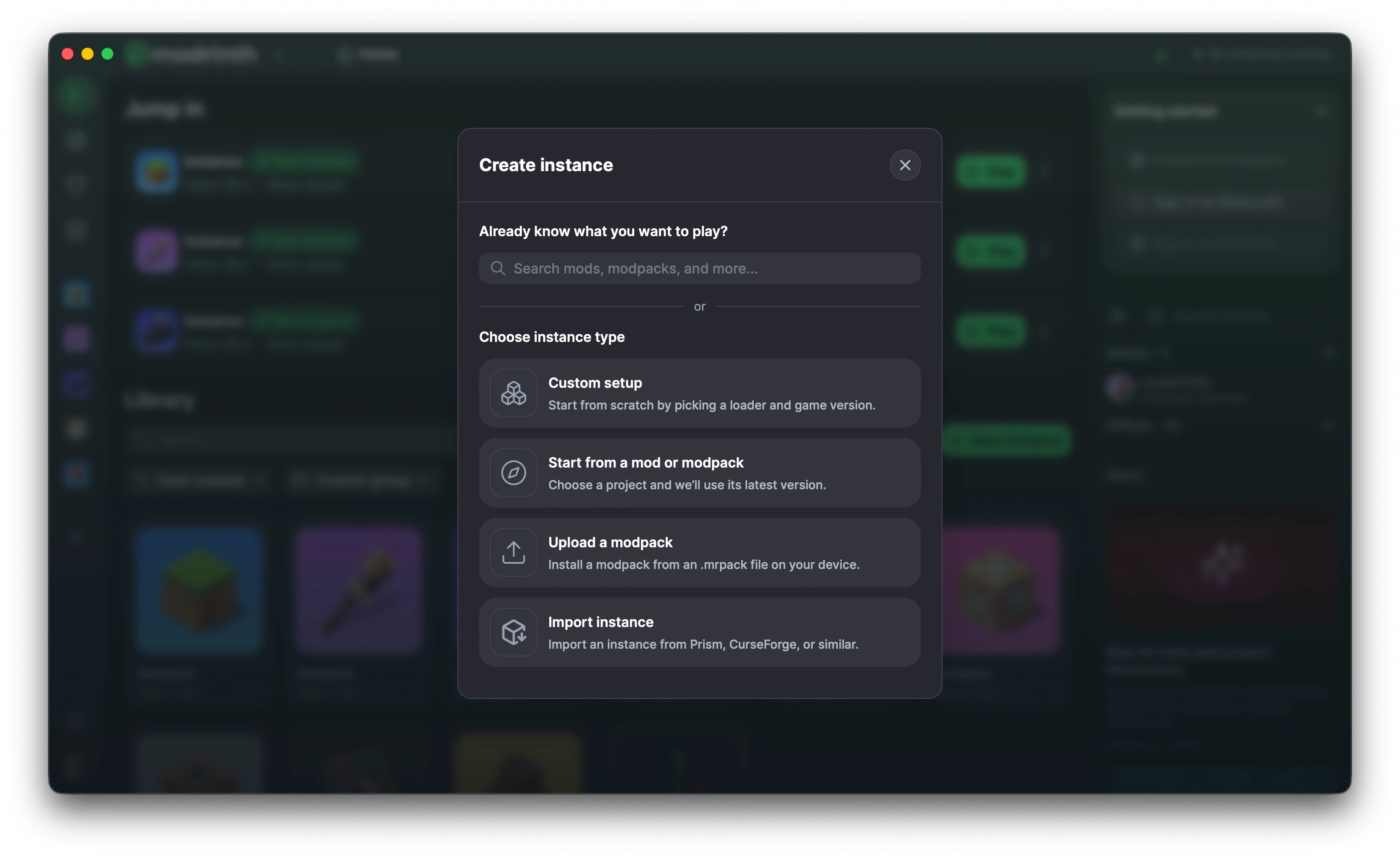
The instance creation flow also got some improvements. You can now search for content directly if you already know what you want to play and we’ve added a new option for uploading a modpack.
Icon editor
A long standing problem with the instance library is that it’s always been hard to spot instances at a glance. Custom instances all use a default icon and choosing your own image isn’t easy.
To fix this, we’ve introduced an icon editor where you can create your own icon for each instance, or we’ll randomize one for you. When making an icon, you can mix and match different backgrounds and symbols until you land on something that feels right.
We’ve released an initial set of backgrounds and icons, with more to come over time. The initial set features a number of iconic things from some of the most iconic mods:
- Cobblemon
- Create
- Create Aeronautics
- Farmer's Delight
- Supplementaries
- Sophisticated Backpacks
- Ad Astra
- Handcrafted
- Origins
- Botania
- Blåhaj
Onboarding
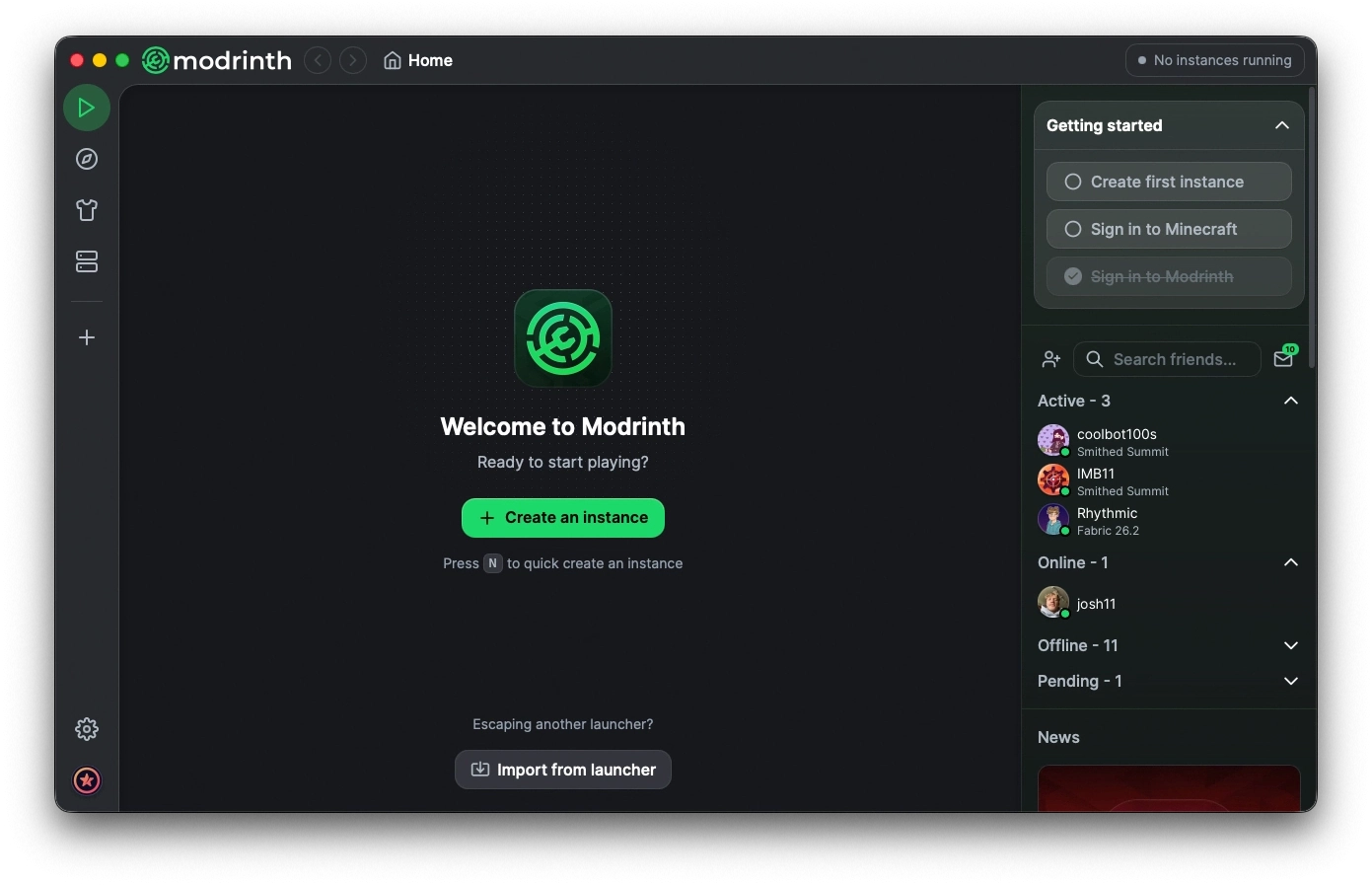
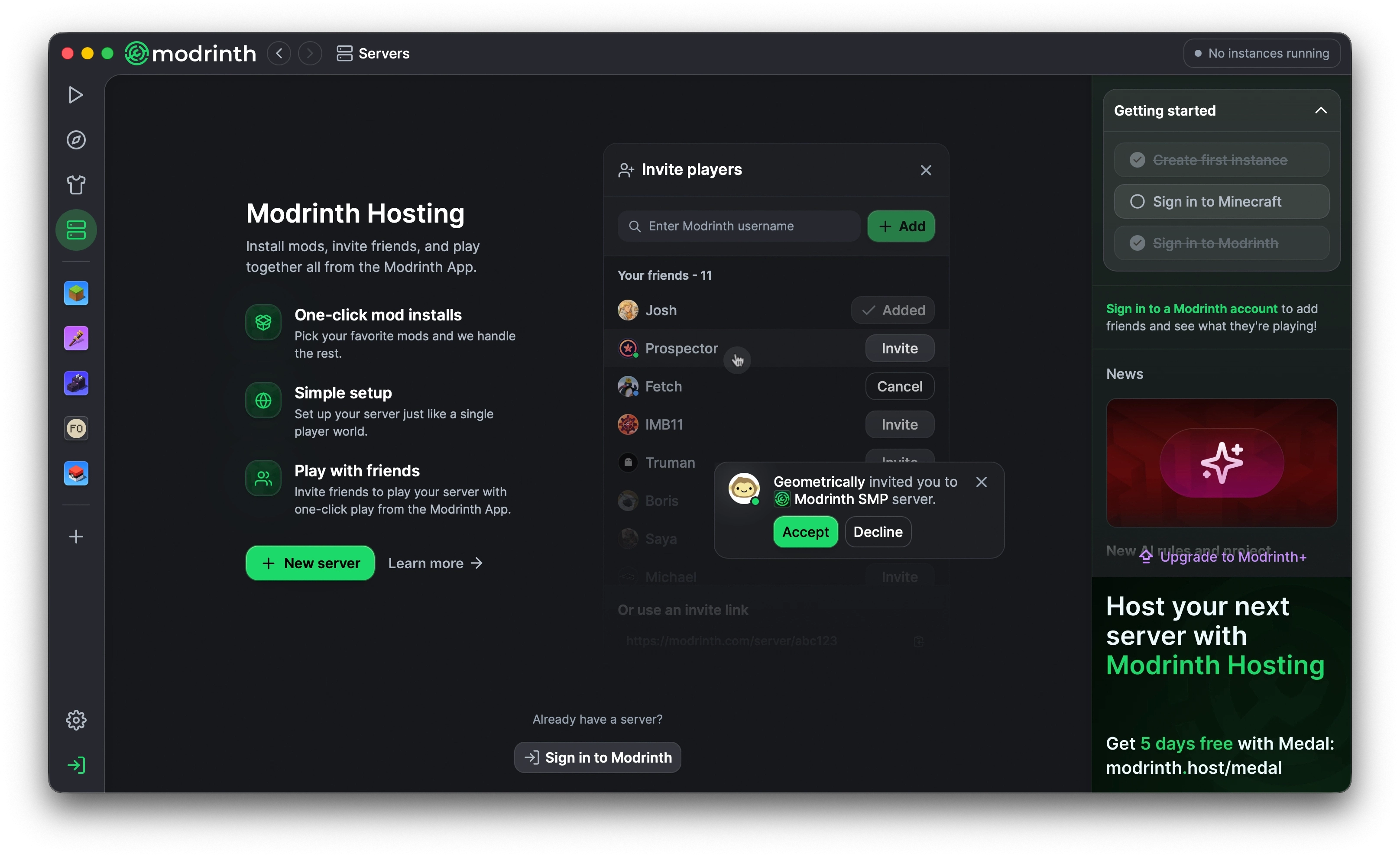
Along with this update, we wanted to make the app experience better for new users. We’ve introduced a getting started checklist that covers creating your first instance, signing into Minecraft, and signing into Modrinth. The natural flow of the app already takes you through most of this, but it works as a helpful reminder.
Empty states
We’ve also updated several of the more important empty states in the app. This includes the new Play page, Hosting page, and letting you play around with the skin editor without being logged in.
Sign-in modals
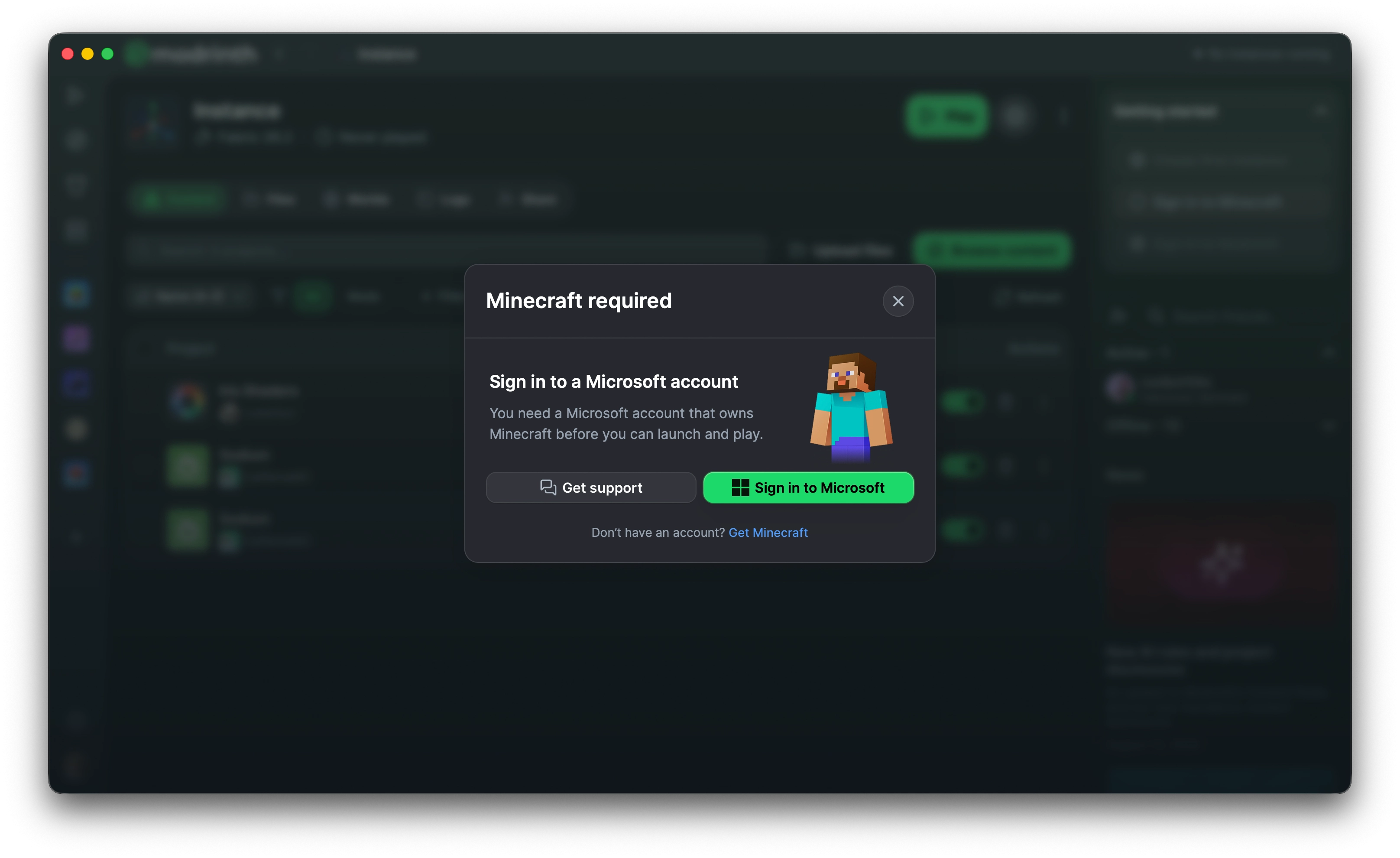
Along with the empty states, the Microsoft and Modrinth account sign-in modals also got a new look as part of the onboarding work.